22 Jan 2026
Sheila’s tip of the week – Avoid Lab Results Going to the Wrong Chart
DID YOU KNOW
In Socrates you can transfer electronic investigations from one chart to another with the click of a button. This is useful when you have imported a Patient’s electronic result into the wrong chart.
How to Transfer:
Click on Communications >> Lab Messaging.
On lefthand side of the screen click on Transfer Message.
Next click on the button in the From Patient box and search for the Patient who has the wrong electronic investigation in their chart. Select the Patient and click on Search.
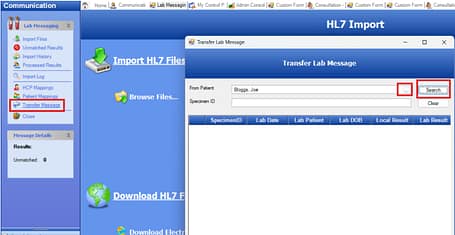
A list of investigations will now appear onscreen with the dates in YYYYMMDD format. Place a tickmark(s) next to the electronic investigation(s) you want to move.

Now click on the button in the Transfer To box and search for and select the Patient that you want to transfer the result(s) out to.
Finally click on Transfer. Your result has now been transferred from the incorrect chart to the correct chart.
How can a result be saved to wrong chart:
When an electronic investigation gets imported into Socrates the system checks if there is a mapping in place for this Patient.
Where there is a mapping in place all results for this patient gets saved directly to their chart.
For new patients or patients where there has been a change of details, e.g. new surname the results won’t map automatically.
These results remain in Result Viewer as unmatched.
The User can double click on the unmatched result and map it to the correct chart. However, in some cases the User may accidentally select the wrong chart. This then saves the wrong result into the wrong chart. It also saves the mapping for all future imports.
How to prevent results going into wrong charts:
In Socrates go to communications >> lab messaging >> Patient mappings. Next click on button in Patient box and search for and select the Patients name.
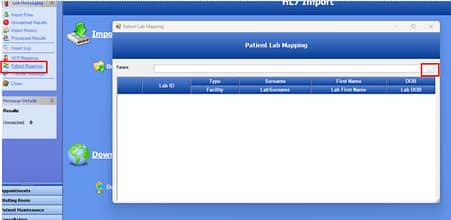
If this patient is mapped to another patient then you will see it appear on the list. To delete the mapping click on the red X.
The mapping will now be deleted which prevents any future imports coming into the wrong chart.
Share this story


